
# Menu
There are two ways to add/remove menu links:
# 1. Via content type settings on the right
Locate Menu Settings on the right, enable Provide a menu link and choose parent menu item.
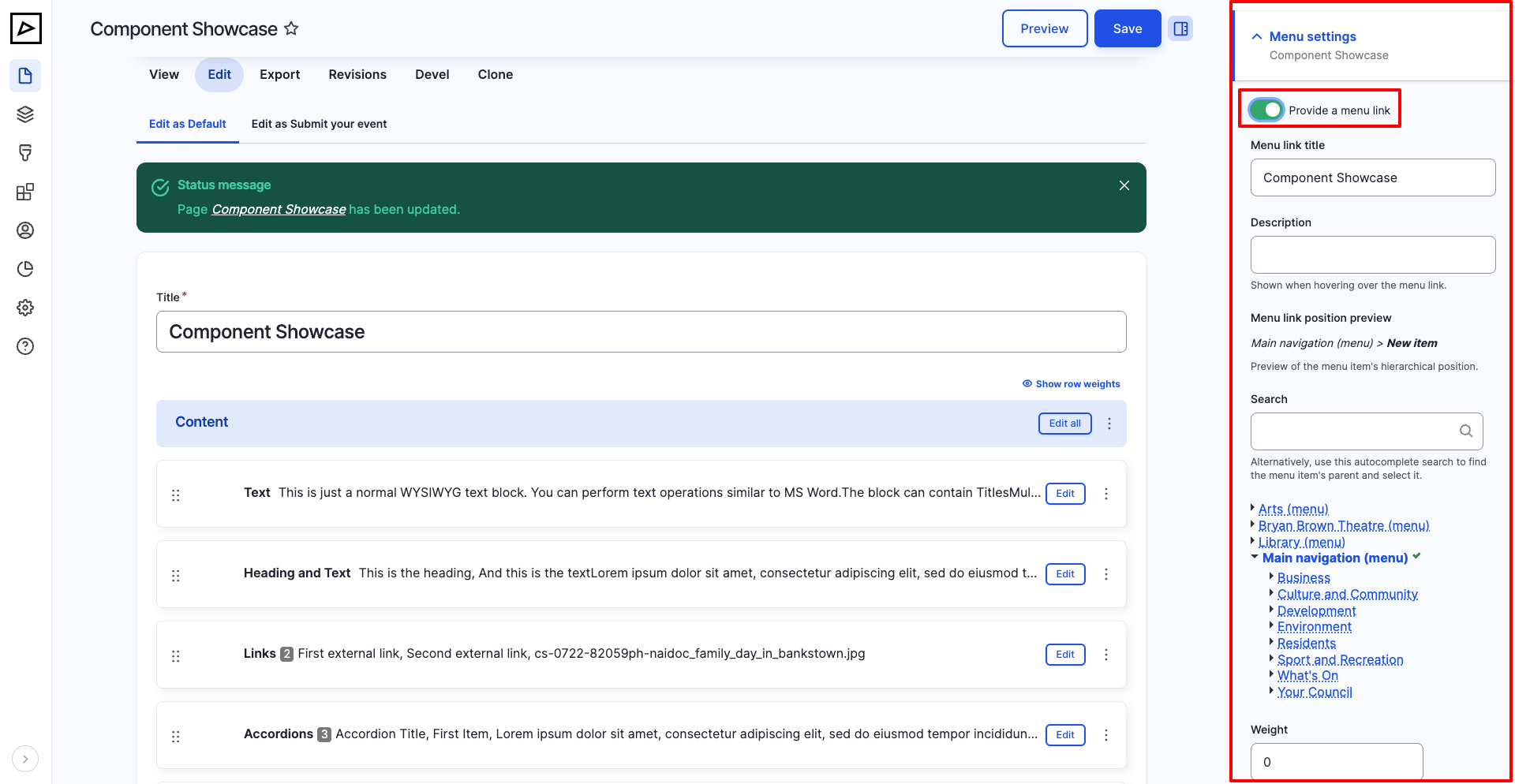
For example, the above screenshot indicates that this page will be linked to the top level of the main menu.
# 2. Via Menu Structure
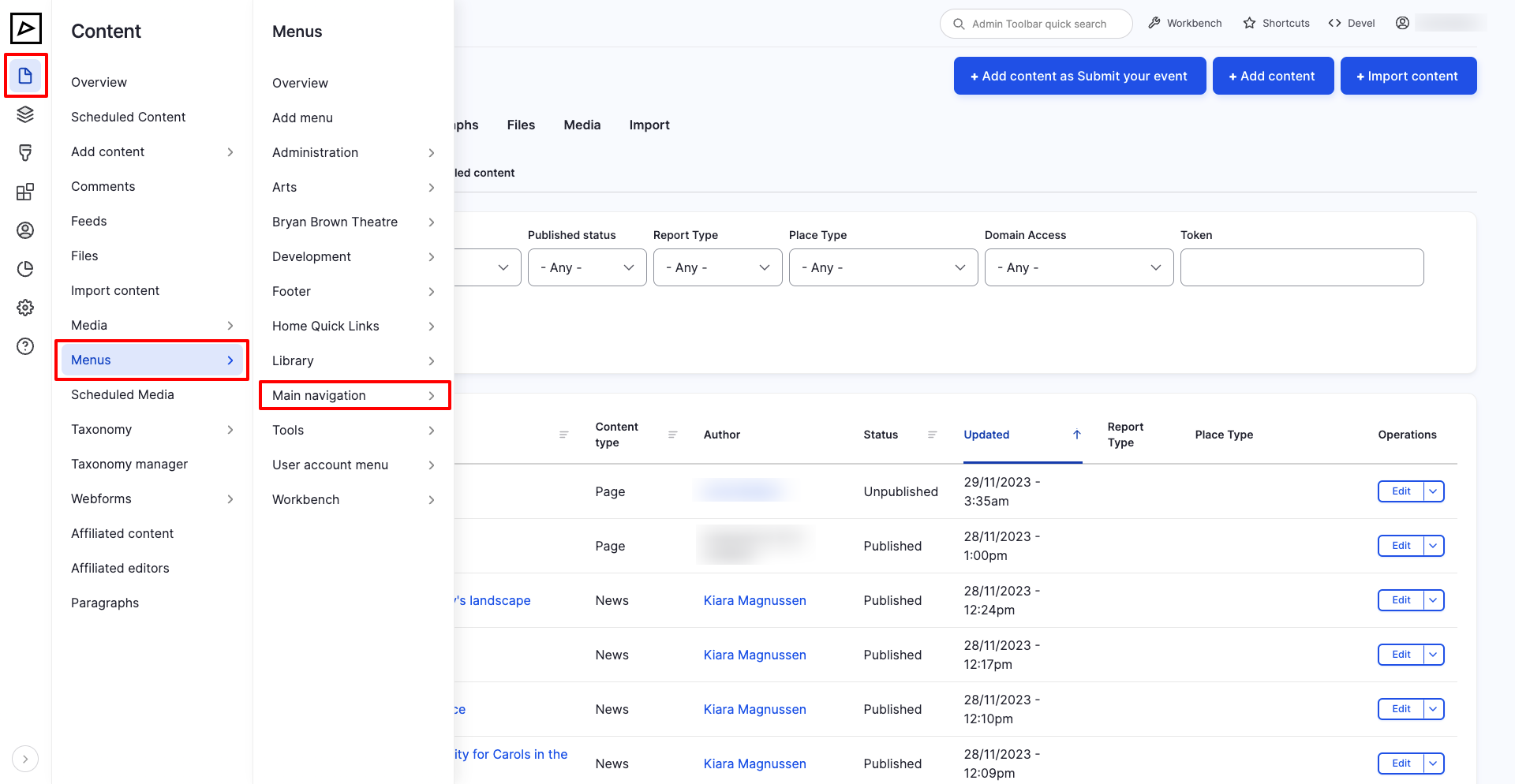
Open a menu structure located in Content > Menus, then click Add link at the top right corner.
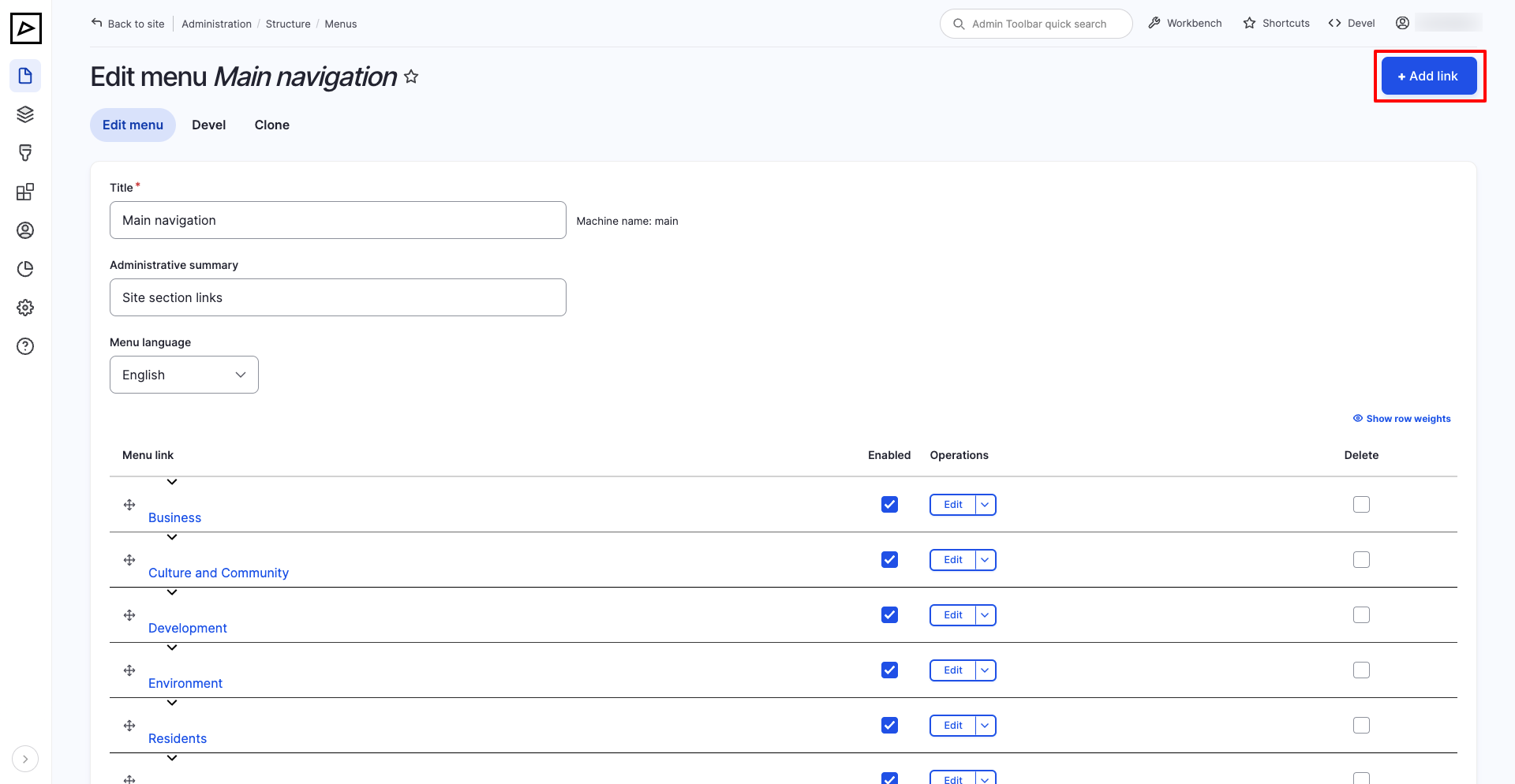
In the Link field just start typing a page name and a list of options should appear.
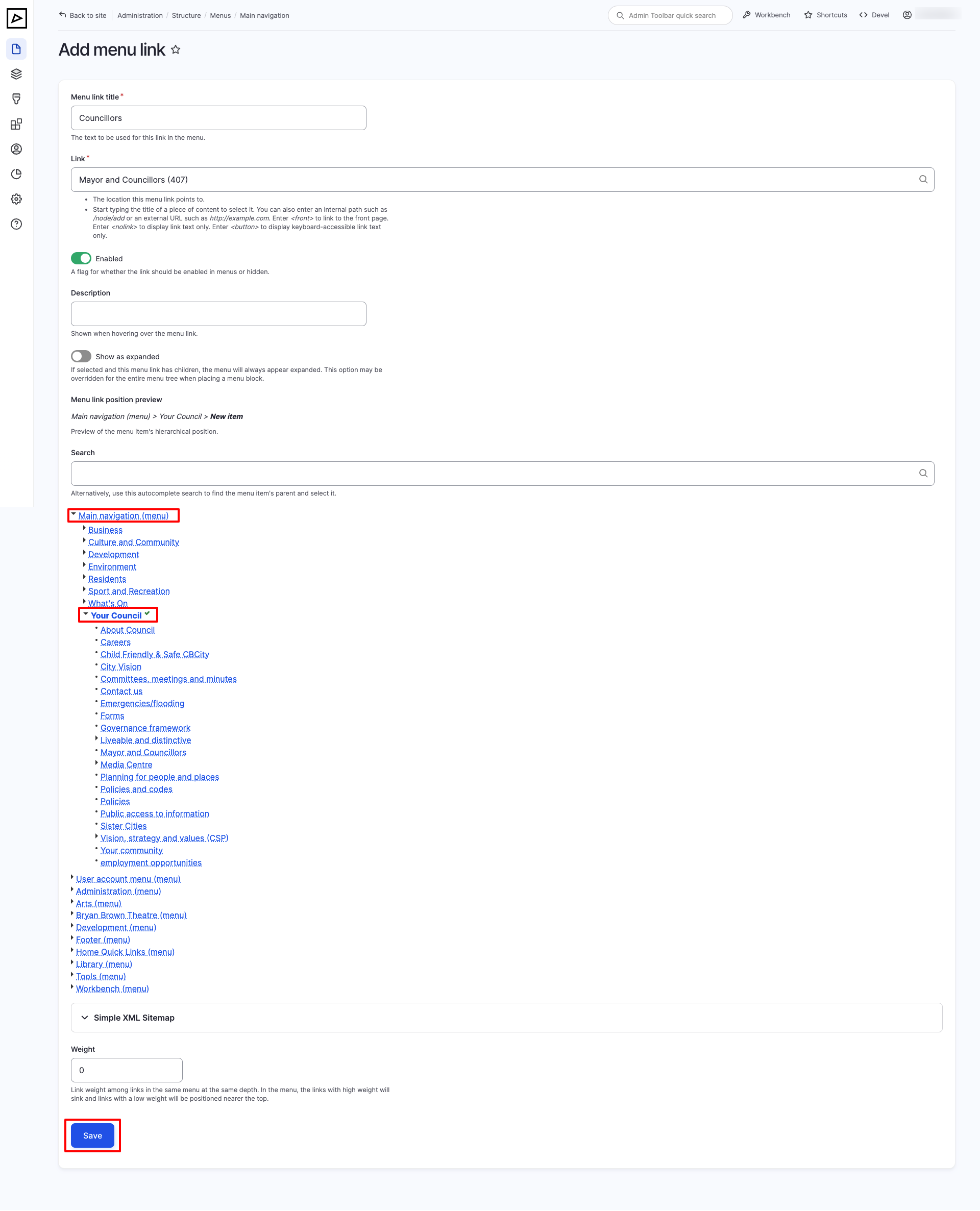
In the example section above, the item will be set as a child to Your Council.
EXTERNAL LINKS
To link an item to an external page, simply type/paste a full URL (starting with https://) in the Link field.
# Viewing child items
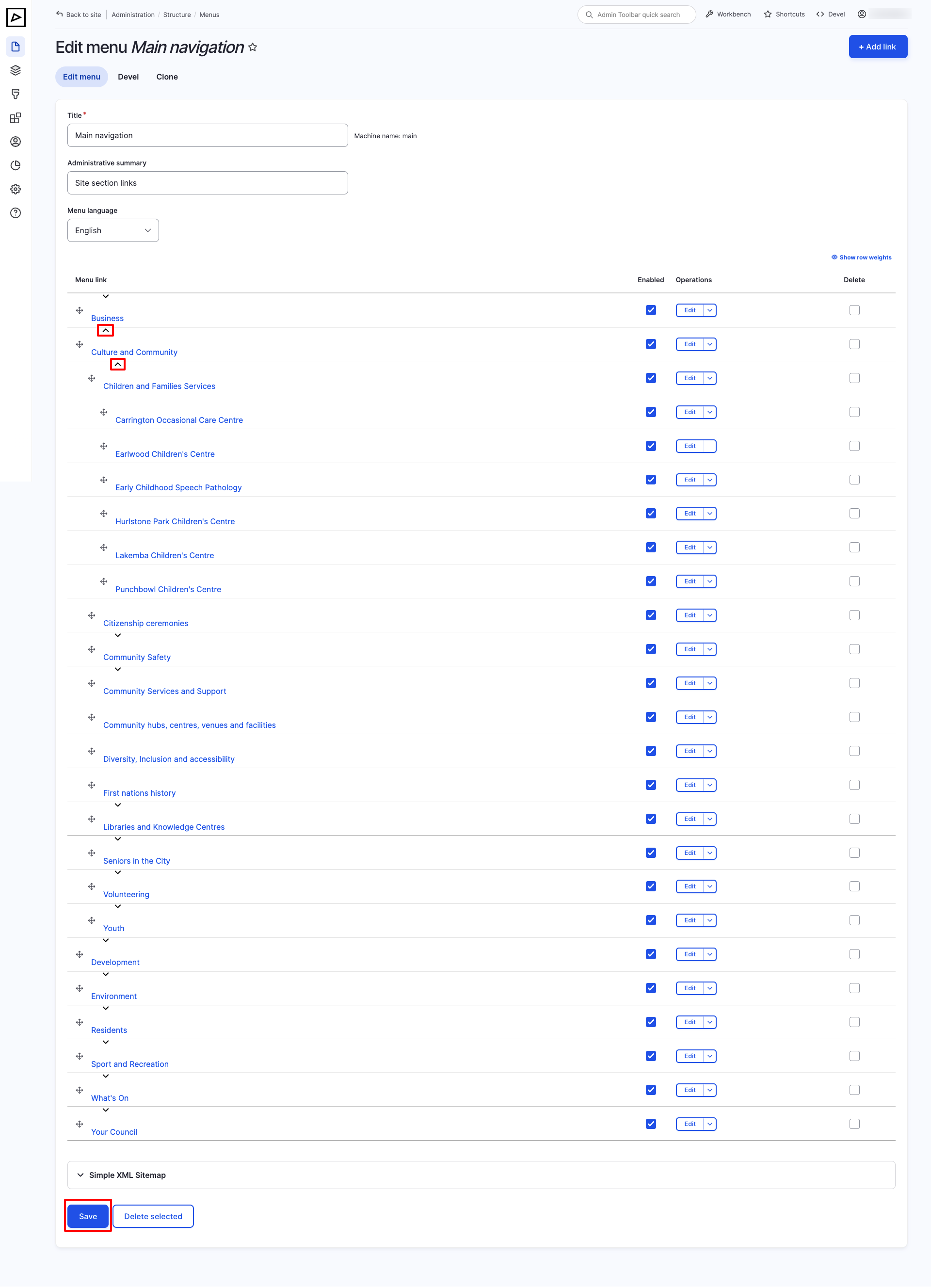
To view nested items, simply click on the chevron (arrow) icon next (above) an item name.
# Re-arranging
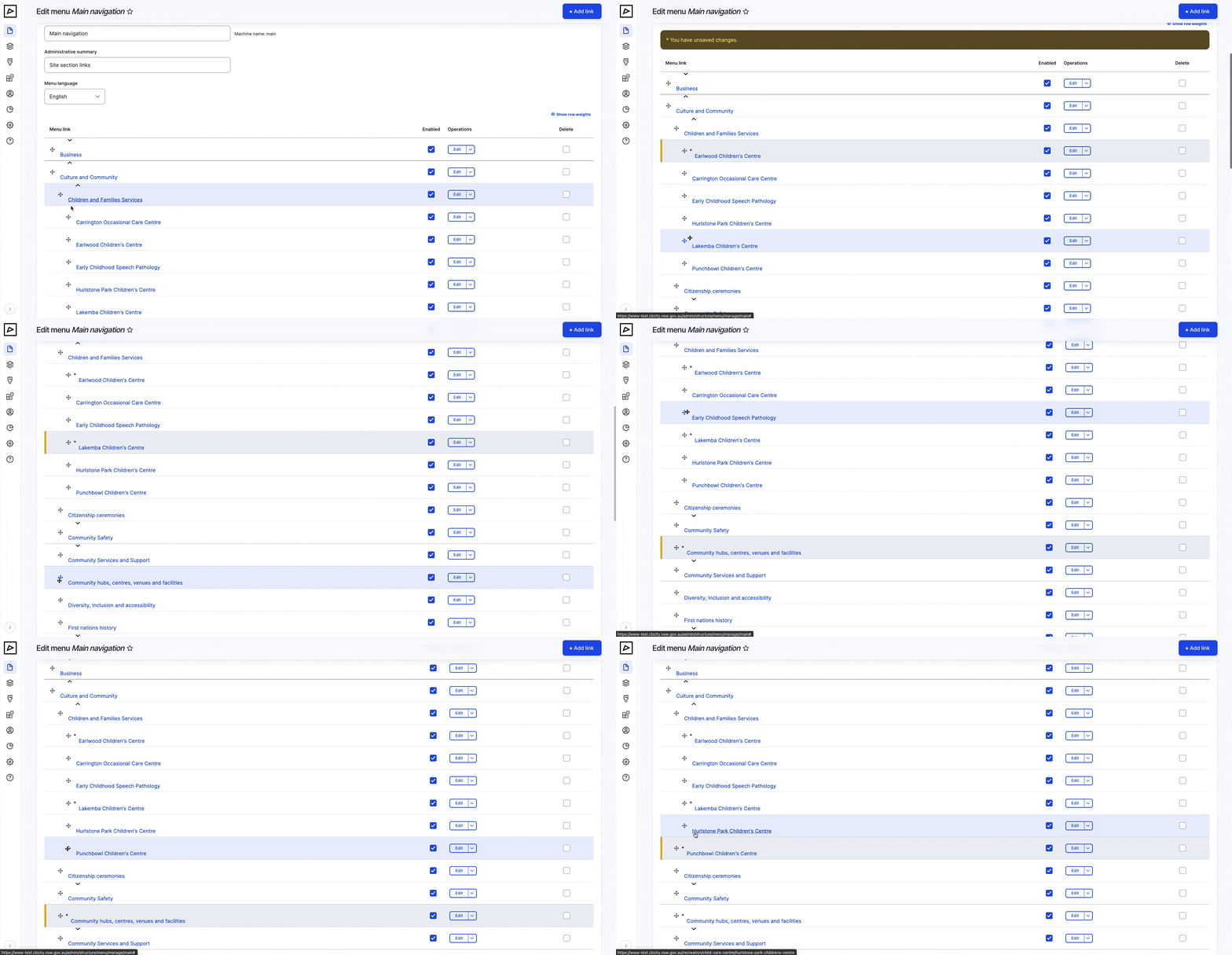
Items can be re-arranged only via Menu Structure. To change order simply drag and drop and item using the cross-arrow icon next to each item.
NOTE
Mind indentation of an item. Parent item has less indentation than its child items.